
800-366-7235
Since 1998

Clearing the TTl Log on the ERA-VPRX

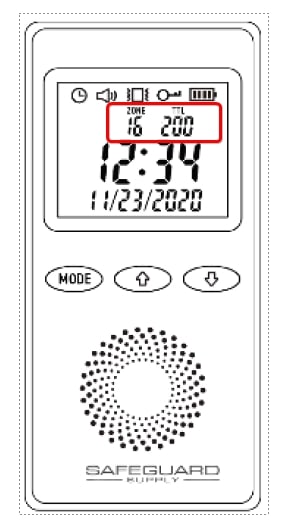
The ERA-VPRX will keep a log of up to 200 events per zone. Each time a transmitter paired to a zone is triggered, it will record the event. To clear the log for a zone, please follow the steps below. Note: recent TTL (the event log) is displayed on the LCD screen (see image below)….
Updated: July 27, 2026Original publish date: March 7, 2023
Clearing the TTl Log on the ERA-VPRX

The ERA-VPRX will keep a log of up to 200 events per zone. Each time a transmitter paired to a zone is triggered, it will record the event.

To clear the log for a zone, please follow the steps below.

*Note: recent TTL (the event log) is displayed on the LCD screen (see image below). Before viewing the log files or deleting them, this recent TTL event must be cleared from the screen. This is done by tapping the power button located on the left side of the ERA-VPRX. You will hear a quick beep sound once the TTL event has been cleared from the screen.

  • Make sure recent events are cleared from the screen by tapping the power button.
  • Unlock the keypad by simultaneously pressing the “up” and “down” buttons until you hear a beep, then release.
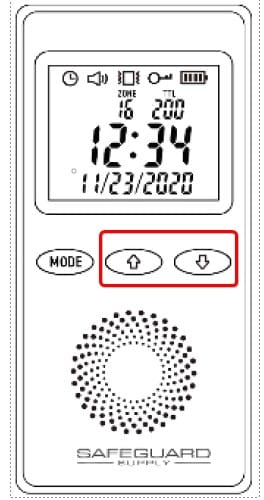
ERA-VPRX Hold down Up and Down Arrow
  • Scroll through the zones by pressing the “down” button to view the TTL event for each zone.
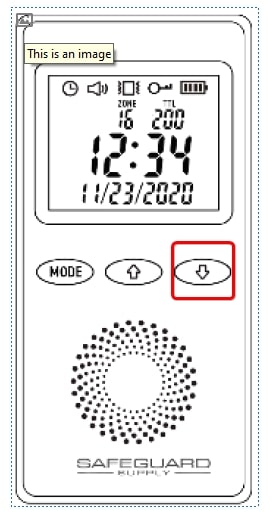
press the down arrow on the ERA-VPRX
  • When you land on the zone you want to clear, hold down the “mode” button for approximately 2 seconds, until you hear a beep sound.
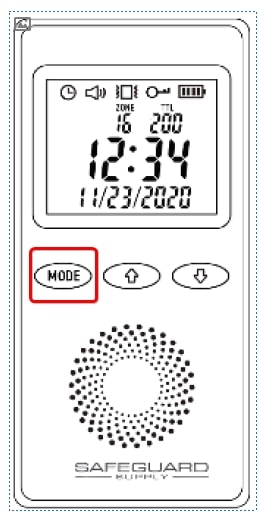
ERA-VPRX Hold Down Mode Button
  • After holding down the “mode” button for 2 seconds, you should see this in the LCD display:
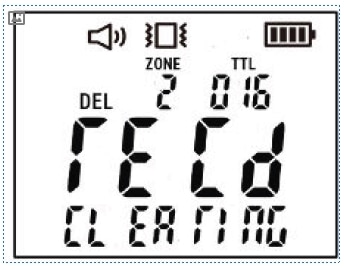
Screen showing Receiver being cleared
  • Next, simultaneously hold down the “mode” button and “down” button until you hear two quick beeps and the event log number (TTL) changes to “000.” The log is now cleared.
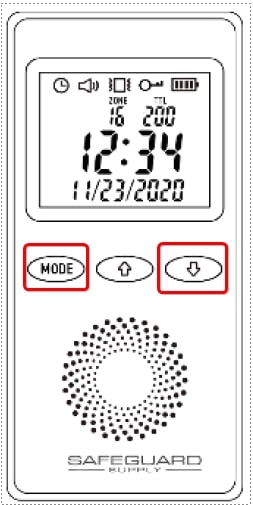
ERA-VPRX Mode and Down Arrow to Clear
  • If you have another zone to clear, click the “down” button to advance to the next zone and repeat the previous two steps.
  • If you have no other zones to clear, simply wait a few moments and the unit will exit programming mode.

More in ERA Product FAQ

Browse the full FAQ category or continue with related answers from the same FAQ category.

View category
Understanding the 12V DC Outputs on Your ERA-DCRX Receiver: A Guide to Zones, Strobes, and BellsIntroduction to the ERA-DCRX Receiver The ERA-DCRX receiver is the heart of your long-range wireless doorbell system, designed for business and warehouse environments. It features four independent zones, each capable of supporting up to three sensors or transmitters (for a total of up to 12 per receiver). When a zone is triggered, the receiver plays…Extending ERA Product Range: Connecting ERA-UTX to ERA-DCRX C-FORM RelayThis guide explains how to connect the ERA-UTX to the C-FORM relay on the ERA-DCRX, effectively creating a relay or extender to increase the operating range of ERA products by an additional 4,000 ft. Detailed Use Case Example Consider a scenario where a customer has purchased an ERA-DCKIT, which includes: Initial setup: Solution: Introduce an…ERA-RXPG Plugin Receiver User ManualIntroduction The ERA-RXPG is a long-range, wireless door chime receiver that plugs into a standard 120V outlet. It is compatible with all ERA transmitters. Helpful Notes Volume Control: The volume button is located on the side of the unit (see Figure 1). Pushing it will scroll through four (4) levels of volume control. Pushing it…ERA-PBTX Push Button User ManualIntroduction to the ERA-PBTX by Safeguard Supply The ERA-DCKIT is a long-range, wireless door chime kit. It includes the ERA-PBTX (push button/transmitter) and the ERA-RXPG plugin. This product manual outlines programming the ERA-PBTX to the ERA-RXPG. Helpful Notes about the ERA-PBTX Push Button ERA-PBTX Push Button Battery Installation: This product contains a coin battery that…How to Program the ERA-PIR Transmitter to the ERA-DCRX ReceiverWatch the video below to program the ERA-PIR transmitter to the ERA-DCRX receiver.If you want information on pairing the ERA-UTX transmitter to the receiver, click here. Alternatively, you can watch this video and activate the ERA-UTX by pressing the push button on the unit rather than triggering the passive infrared motion sensor (ERA-PIR). Video Transcript:…