
ERA-PBTX Push Button User Manual
Introduction to the ERA-PBTX by Safeguard Supply The ERA-DCKIT is a long-range, wireless door chime kit. It includes the ERA-PBTX (push button/transmitter) and the ERA-RXPG plugin. This product manual outlines programming the ERA-PBTX to the ERA-RXPG. Helpful Notes about the ERA-PBTX Push Button ERA-PBTX Push Button Battery Installation: This product contains a coin battery that…
On This Page
- Introduction to the ERA-PBTX by Safeguard Supply
- Helpful Notes about the ERA-PBTX Push Button
- ERA-PBTX Push Button Battery Installation:
- Replacing the Battery:
- Pair ERA-PBTX to an ERA Compatible Receiver:
- Test the Programming of the ERA-PBTX Push Button to Receiver:
- Mounting the Push Button:
- Low Battery Indicator:
- Clearing the Memory of the ERA-RXPG:
Introduction to the ERA-PBTX by Safeguard Supply
The ERA-DCKIT is a long-range, wireless door chime kit. It includes the ERA-PBTX (push button/transmitter) and the ERA-RXPG plugin. This product manual outlines programming the ERA-PBTX to the ERA-RXPG.
Helpful Notes about the ERA-PBTX Push Button
- All ERA transmitters are compatible with all ERA receivers.
- The ERA-PBTX is a push-button transmitter that must be programmed with an ERA-compatible receiver.
- The push button is outdoor rated and contains a silicone gasket to keep moisture out. Mount it with the small weephole pointing down to ensure any moisture in the unit evaporates.
- The push button measures 3.00” H x 2.25” W x 1.75” D.
- The halo ring around the center push will illuminate dimly for visibility at night.
- Then, when triggered (the center push button is pressed), the center halo will illuminate brightly for approximately 2 seconds.
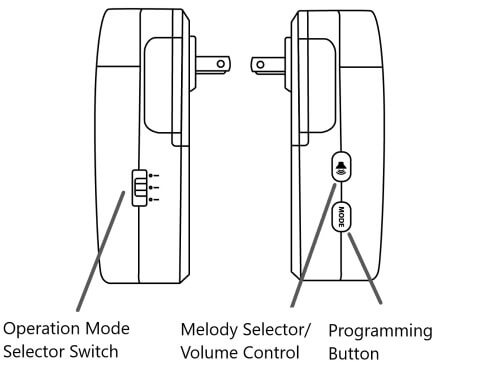
- The ERA-RXPG has three operational modes: strobe only, sound only, and strobe + sound (see Figure 3).
- The ERA-RXPG has 12 different melodies to choose from. The “ding-dong” melody is the default melody.
- The ERA-RXPG may be programmed with up to 12 ERA transmitters. Each transmitter may have a distinct melody.
- An ERA transmitter’s range (line of sight) to the receiver is 4,000 ft.
ERA-PBTX Push Button Battery Installation:
*This product contains a coin battery that could be dangerous to children. Please review the warnings regarding the batteries at the end of this manual.
The ERA-PBTX comes with a battery installed. Pull out the plastic tab to activate the battery. Test the button by pressing the center push. The green halo LED lighting should illuminate around the center push.
Replacing the Battery:
- Remove the silicon casket around the ERA-PBTX.
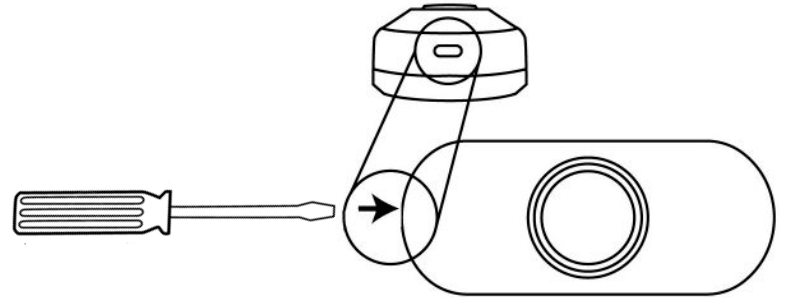
- Open the front cover by removing the silicon gasket sleeve around the push button. Insert the included screwdriver into the square hole on the bottom of the unit (figure 1), gently push, and then separate the top and bottom halves of the case.
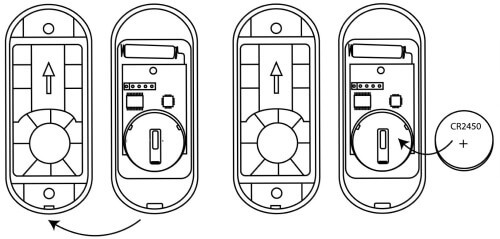
- Remove the top part of the case from the lower part of the case (figure 2).
- Install the included CR2450A 3V battery into the battery holder with the positive (+) side of the battery facing up (figure 2).
- Replace the silicon gasket around the push button.
- Test the battery by pressing the center push. The green halo should illuminate for approximately 2 seconds, signaling transmission. Note: Program the push button to a compatible receiver before mounting the push button.
Pair ERA-PBTX to an ERA Compatible Receiver:
Always test the unit before installation. The transmitter works with all ERA receivers. This manual outlines how to program the push button to the receiver.
- Ensure the ERA-RXPG is plugged into a standard wall outlet.
- On the ERA-RXPG receiver, hold down the “mode” button (lower button in Figure 3) until you hear a short tone sound, and the red LED (inside the front lens cover) begins to blink. This denotes that the unit is in programming mode. Release this button.
- Press the melody selector button to scroll through available melodies. Stop pushing this button when you hear the sound and want the respective push button to play.
- Push the center button on the push button. The receiver will play a quick chime sound, notifying the transmitter that it is programmed to the receiver. The red LED should still be blinking.
- To program a second transmitter (push button, door contact, motion sensor, or driveway sensor), push the melody selector button (the button on top) to scroll through available melodies. Once you have the sound you want, stop pressing the melody selector button and repeat step 4 above, triggering the sensor/transmitter.
- Once you have programmed all the transmitter(s), exit programming mode by holding down the “mode” button until you hear a short tone sound & the red LED disappears (approx. 3 seconds).
Test the Programming of the ERA-PBTX Push Button to Receiver:
- Ensure the ERA-RXPG receiver is plugged in & the battery is installed in the ERA-PBTX push button.
- Push the ERA-PBTX center button. When pressed, the green halo around the center push should brightly illuminate.
- When triggered, the receiver should play the selected melody and/or flash. Make sure the receiver is set to sound mode by moving the selector switch on the side of the receiver to sound only or sound + strobe (middle or lower position of selector switch).
Mounting the Push Button:
Ensure you have programmed & tested the push button before mounting. There are two mounting options: 1) using the supplied double-sided tape and 2) using the supplied mounting screws.
- Open the front cover by inserting the included screwdriver into the square hole on the bottom of the unit (figure 1), and gently push in to separate the top & bottom parts of the push button.
- Remove the top half of the case from the lower half of the case.
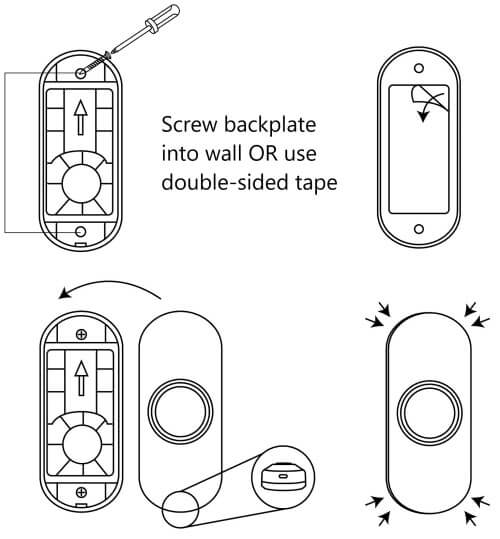
- Place the back cover of the case on the wall where you want to mount it. The back cover may be mounted using the supplied screws or the double-sided tape.
- Ensure the arrow on the back cover is pointed (figure 4) and mount it to the wall.
- Put the top half (with battery installed) over the bottom half and snap it closed.
Low Battery Indicator:
When the battery in the ERA-PBTX is low and needs to be replaced, it signals the receiver to double-play the programmed melody, and a red LED will flash for 10 minutes.
Clearing the Memory of the ERA-RXPG:
- On the ERA-RXPG receiver, hold down the “mode” button (lower button in Figure 3) until you hear a short tone sound, and the red LED (inside the front lens cover) begins to blink. This denotes that the unit is in programming mode. Release this button.
- Simultaneously hold both the “mode” and “Volume” buttons for approximately 5 seconds until you hear a quick chime sound. This notifies you that the ERA-RXPG’s memory has been erased.
The ERA-PBTX is compatible with all receivers in the ERA series. Programming is similar, except for programming mode and melody selection/change. Please consult the receiver’s manual when programming.
More in ERA Product FAQ
Browse the full FAQ category or continue with related answers from the same FAQ category.